iGeneric: how can teachers incorporate iPad in all subject areas?

20130204-123015.jpg

A group of science teachers were sitting around on the staff room table. They were having a faculty meeting. One of them said, “I found this great app about biological cells! We can use this to teach the unit about cells!”. Another one responded by saying “This app I stumbled upon yesterday is amazing for teaching about the periodic table!”. The conversation went on for quite some time, only to end with one of them saying “there aren’t that many apps that can be used to teach Science”. This is when I intervened!

What I observed was a number of teachers who flicked through the chapters of the textbook, and then tried to find an iPad app to replace each chapter. I believe this approach is very limiting, and does not allow for full utilization of the iPad as a tool. I teach drama, and none of the apps I use in my classroom have anything to do with drama!

In Andrew Douch’s words, the iPad is a “Swiss-army knife” of tools! Subject-specific apps are great, but generic apps are even greater! There’s so much you can do in every subject with just a bunch of generic and cheap/free apps! Using the iPad in the classroom does not just mean using apps that are subject-specific. It is more useful to think of learning processes and activities, and how the iPad can facilitate these learning activities, not replace the designated reference used in the subject (i.e. textbook).

Here are some generic learning activities (or learning processes) that can incorporate the iPad, and using apps that are not subject-specific:

1- Documentation: the iPad has a Camera. So what? Before iPads, students may have been asked to use digital cameras, and then connect them to a laptop/desktop, import their photos/videos and so on. There were a lot of steps involved, and more than one device. The iPad eliminates all these steps. In science classes, the students could shoot video footage of their science experiments. In art classes, the students could take snapshots of their artwork at different stages of the creation process. In maths classes, students could take snapshots of the whiteboard to keep a visual record of the steps a teacher took to solve an equation. The students can also keep video footage of class discussions or group work for their documentation. Realistically, the ability to shoot video/take photos anytime and anywhere, without having to import them on another device later, is a great advantage for any subject area.

2- Reflection: the iPad can make student-reflections easier and more suited to their learning styles. Students can use an app like Evernote to keep reflection notebooks/journals. Evernote notebooks allow inserting text, photos (from the Camera-roll), voice notes, checkboxes, and locations. Therefore, students can reflect in oral or written format, and supplement their reflections with photos and screenshots. An app like ShowMe can also facilitate reflection, as students insert photos of different parts of the learning process and doodle over them, while also recording their voice. Reflection has a role (or should have a role) in all subject areas, and so these apps/learning activities can be used in whatever class.

3- Discussion: this is not necessarily an advantage of the iPad itself, but the iPad does facilitate discussion by allowing mobile access to several discussion platforms. Students can have back-channel discussions on Edmodo while a teacher is explaining a lesson. Twitter hash-tags can also be used to encourage back-channel discussions, or even a Facebook page. Whatever the subject area is, these apps/tools can facilitate discussion in any class.

4- Formative Assessment: being able to gauge the students’ learning while it’s still occurring is a very useful thing for teachers. Again, it’s not a characteristic of the iPad itself that makes it easier to make formative assessments, but its mobility and portability, as well as a range of apps that facilitate the process. An app like Socrative allows students to ‘click’ their answers as a teacher poses a question, and also allows teachers to create and assign quizzes, and exit slips. The teacher could also poll the class quickly before deciding the next course of action. Socrative will automatically send the teacher an e-mail with a spreadsheet report of the answers. Also, the statistics can be displayed directly on the app to show the class and prompt further discussion to correct misguided learning. The teacher just downloads the Socrative Teacher Clicker and creates a free account. The students then download the Socrative Student Clicker and join the teacher’s room, no sign-in or registration required. Socrative can be used in any subject area, as it is not subject-specific.

5- Creation: as Andrew Douch wrote, the iPad is a “Swiss-army knife of content-creation tools“. I have written a post previously about using the iPad to encourage creation in the classroom. In this post, you will find several non-subject specific apps that teachers can use to get their students creating blogs, wikis, animated cartoons, comics, podcasts, screencasts, videos/movies, ebooks, ePortfolios, and much more. These content-creations can be used in all subject areas. Students can create podcasts in science class explaining main concepts, or comics in history class to describe a historical event, or animated cartoons in geography class where they are interviewing a famous geographer, or screencasts in Maths class to explain steps taken to solve a mathematical problem etc…

To conclude, I would like to encourage teachers to explore the apps mentioned in this post, as well as any linked posts. Below is a screenshot of many apps that can be used in meaningful learning activities, and none of these apps are subject-specific!

20130204-125112.jpg

iCreate: How the iPad facilitates content-creation in the classroom?

iCreate

Andrew Douch wrote “the iPad is a swiss army knife of content-creation tools”. I read that sentence in his blogpost ‘How an iPad is a More Powerful Content-Creation Device Than a Laptop‘ and realised that he managed to say what I have been trying so hard to say for months, but just couldn’t find the words or gather the courage. I constantly come across teachers who argue that the iPad is very limiting and restricting, and that a laptop is far more superior. I personally disagree, but found it hard to argue my case. Andrew Douch wrote that ‘if professional production quality is your imperative, then the iPad is not your best tool’ and that it may be best to find a more ‘technologically capable’ device. However, he did argue that it is more ‘pedagogically productive’. The paragraph that sums it all up reads as such:

‘But producing comparable creative content on an iPad is relatively quick, simple, yields impressive results with minimal fuss, and the learning curve is … well, there almost isn’t one! There is no need to connect an external microphone (the built-in one is better than that in any laptop), no need to adjust recording levels, no need to use a pop-filter. No need to import media from a recording device to the editing device (becasue they are one and the same), and it’s unnecessary to allow 10 minutes at the end of a class, to save, unplug devices, shut down and stow the laptops. Instead, when the bell sounds, students simply flip their iPad cases closed and walk to the next class!’

And that is the truth, ladies and gentlemen. The iPad combines so many content-creation tools in one device, that it truly is a ‘swiss army knife’. Right there from the same device (without any external supplementary tools, and with a few cheap apps), students have the opportunity to create podcasts, screencasts, movies, blogs, microblogs, websites, eBooks, wikis, electronic portfolios, animated cartoons, comics, annotated PDFs, annotated pictures, photos, paintings, drawings etc… Andrew Douch also wrote that:

We’ve had computers in schools for years, but in reality many (most?) classroom teachers don’t and never did have their students making podcasts, movies, eBooks and websites. Doing so seems too time consuming and for many non-technical teachers the learning curve appears disproportionate to the benefits realised.

Using the iPad will not produce the highest professional quality, but it will make all of these creations much quicker, and easier, and that’s what teachers need to tap into. I wrote this post with the intention of informing my school’s teaching staff of all the possible content-creation apps that I have come across. The apps I mention here are definitely not the only ones that can do what they are designed to, but they are the ones that I am aware of and have previously used. I will divide the list according to its potential for content creation. So, here goes my attempt:

  1. Blogs/websites: I use the WordPress iPad app, as well as the Blogger app for blogging. Generally, I set up the accounts for the students using a class gmail account (due to age restrictions and safety reasons). On a blog, you can have pages, and sub-pages, and you can embed videos, screencasts, photos, files (through Google Drive, for example) and much more, which essentially means it can be both a blog and a website.
  2. Screencasts: My favourites are definitely ShowMe and Explain Everything. ShowMe has the advantage of being an online learning community, and screencasts can be uploaded on a ShowMe profile and then later on embedded on a blog or website. Explain Everything has the advantage of being able to import media such as PDFs or PowerPoints/Keynotes, and annotate over them while recording voice. However, Explain Everything screencasts may need to be uploaded on YouTube or Vimeo first in order to embed them on a blog/website.
  3. Movies/videos: I believe iMovie is by far the easiest to use (though many others disagree). My students use iMovie to create trailers, edited videos, short movies, and photo presentations with music and text. I think all that is quite enough for a classroom activity or task in any subject. Again, uploading these videos/movies on a class YouTube or Vimeo channel can allow embedding them on a blog/website/wiki.
  4. Podcasts: My favourite is Audioboo (but there are many others out there like using Audio Memos along with a Posterous account). My students record their Audioboos and then embed them on their blog/website. Some students also prefer using GarageBand to record audio files, and then import them into iMovie, where they add a picture or some sort of visual element. The students would then upload the podcast onto the class YouTube channel and embed it into their blog/website.
  5. eBooks: I prefer to use Book Creator because it is easy and relatively efficient. You can also embed all sorts of media into your eBook, which a lot of students like to do. eBooks can then be uploaded onto the students’ e-portfolios, or even embedded/hyperlinked onto their blogs/websites.
  6. ePortfolios: A blog, wiki or website can definitely be used as an ePortfolio. But for teachers who may be quite wary about age restrictions or the safety of their students, Google Drive offers huge potential for creating ePortfolios. Just by setting up folders and sharing them with the teacher/s, along with the Google Drive iPad app’s ability to upload all sorts of media (using ‘Open in another app’ functionality from most apps), the student can easily create and share an ePortfolio with the teacher. I have also used Evernote in many of my drama classes and I am a big fan of using Evernote for creating ePortfolios. However, I needed to set up an Evernote premium account and many teachers may refuse to do so.
  7. Animated cartoons: I have three favourites here: Puppet Pals, Sock Puppets, and Toontastic. However, the best in teaching narrative structure is Toontastic, as there are different scenes: set up, conflict, climax, ending, and you can also add music to create different moods/emotions etc… I love using it with my four-year-old nephew just to get him to think about how to structure a story. Toontastic also allows uploading directly on ‘ToonTube‘, and then embedding on a blog/website.
  8. Annotated PDFs/Photos/Pictures: I use Notability for annotating PDFs and Skitch for annotating pictures/photos. Both can produce content that can easily be integrated with Google Drive/Evernote and thus added to the student’s ePortfolio. Worksheets and handouts can now be shared with students as PDF files and then annotated using text, highlighters, markers, pencils, images or shapes, and that is a useful function for all subjects.
  9. Microblogs: I am a big fan of Edmodo, and I am a passionate user of this learning platform. Edmodo can now also make iPad workflow much easier after a recent app update, where files can easily be uploaded through the ‘Open in another app’ functionality. Teachers can also use Twitter and Facebook for micro-blogging in the classroom, but most social-networking policies in schools place many restrictions and challenges when it comes to these tools.
  10. Comics: I often use Strip Designer or Zoodle Comics to encourage students who wish to create comics. Both apps also allow sharing in PDF formats or into the Photo Library/Camera Roll, which can then easily be uploaded on Google Drive or embedded in blogs/websites.
  11. Drawings/Paintings: I have not used many drawing/painting apps, but I generally encourage my students to use Art Set or Penultimate. There are many more, with more specialised features as well. Again, all output can be exported, shared and embedded on blogs/websites.

To conclude, I would like to restate: I am not arguing that only the iPad can allow such content-creation in the classroom, but I do believe these creations are much easier to produce on an iPad than on a laptop or desktop computer (where additional accessories are often required, along with expensive specialised software). The iPad truly is ‘a swiss army knife of content-creation tools‘ as Andrew Douch wrote, and with these words I encourage you all to go forth and iCreate.

Slapstick Comedy: wrapping up the drama process!

This term, the year 7 and 8 classes studied a unit of work on ‘Slapstick Comedy’. I have posted previously about how we explored the concept of humour in general, and how we defined slapstick comedy. Three weeks ago, we kick-started the drama process and began brainstorming for our performances, and we had the opportunity to write up the scripts and draw up the storyboards for the performances. We also had the opportunity to rehearse for our performances
Last week, we finally had the opportunity to wrap up this process and move into the final two steps: ‘performance’ and ‘reflection & evaluation’. The lesson’s warmup was a quick physical and vocal warmup followed by a final run-through rehearsal outside in the courtyard. After that, the students formed an audience and we watched every performance. The audience were asked to give feedback to each group of performers in the form of positive comments or useful suggestions for improvement. Each performance was recorded using the iPad for documentation purposes, and also to help the performers themselves reflect on and evaluate their own performance skills (as it is much more meaningful to see yourself acting in order to spot your strengths and weaknesses, and hence reflect on them). 
After all performances were presented, the students were given a chance to view their short slapstick scenes, and then use the reflection help-sheet to write their four-sentence reflections and the task-sheet evaluation checklist to evaluate the process as well as the final product. For the year 7 classes (who have iPads), I allowed them to record their reflections orally and attach them to their Evernote group-portfolios/shared-notebooks. After the lesson, I looked through all group-portfolios and I attached my written and oral feedback, and final assessment. 
Overall, I think the task was very engaging for the students. This was the first task where I agreed to allow some students to just be writers and directors for their group’s performance, as many students did not really seem to enjoy performing or were too self-conscious. I believe these students were a lot more engaged with the task.
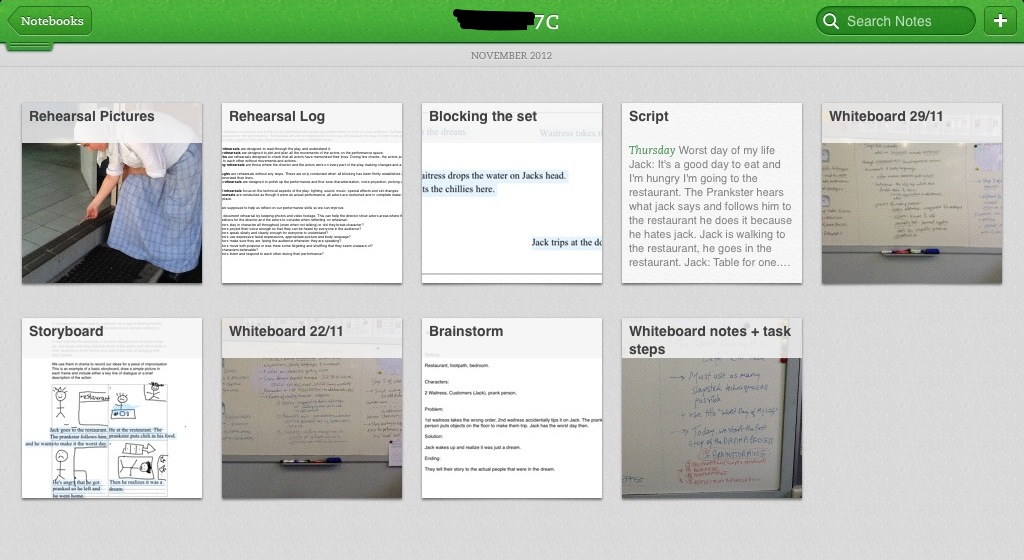
Below you will find a video-tour of one of my year 7 portfolios for this task, followed by some screenshots of evidence attached to the some group portfolios to document every stage in the drama process: brainstorming, preparation (script-writing/story-boarding), rehearsal, performance, reflection & evaluation.
And this, ladies and gentlemen, concludes our year in the drama classroom! Summer here we come!

A screenshot of the final portfolio
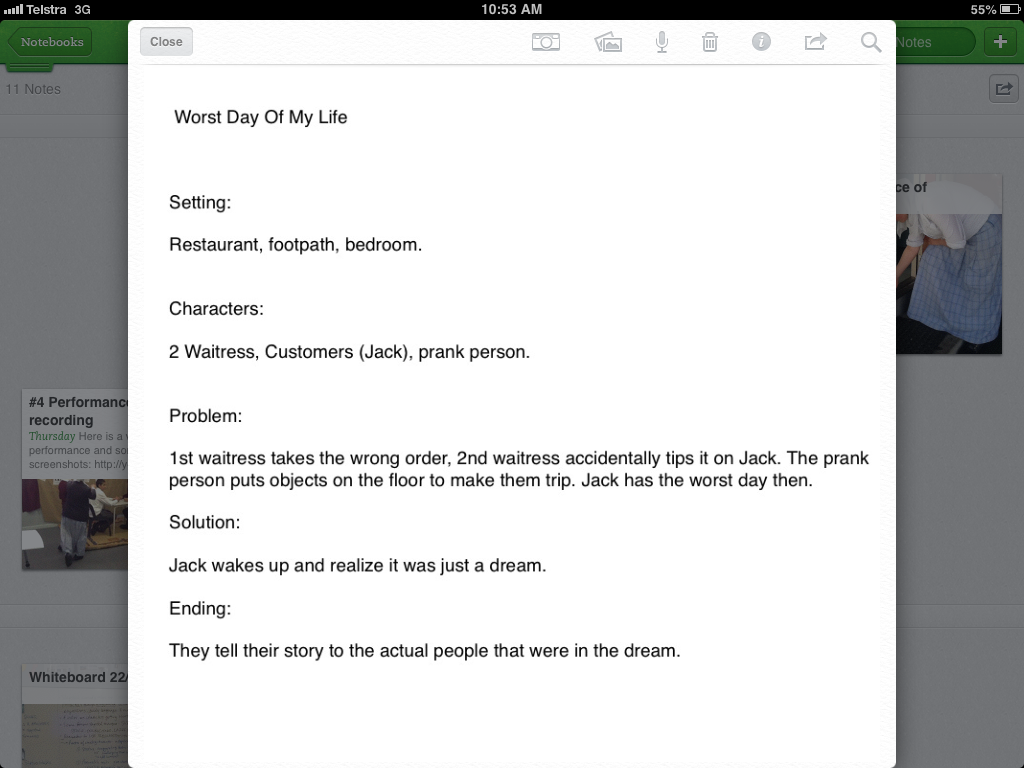
A written outline/brainstorm for the performance
A visual brainstorm for another performance
The script writing-phase
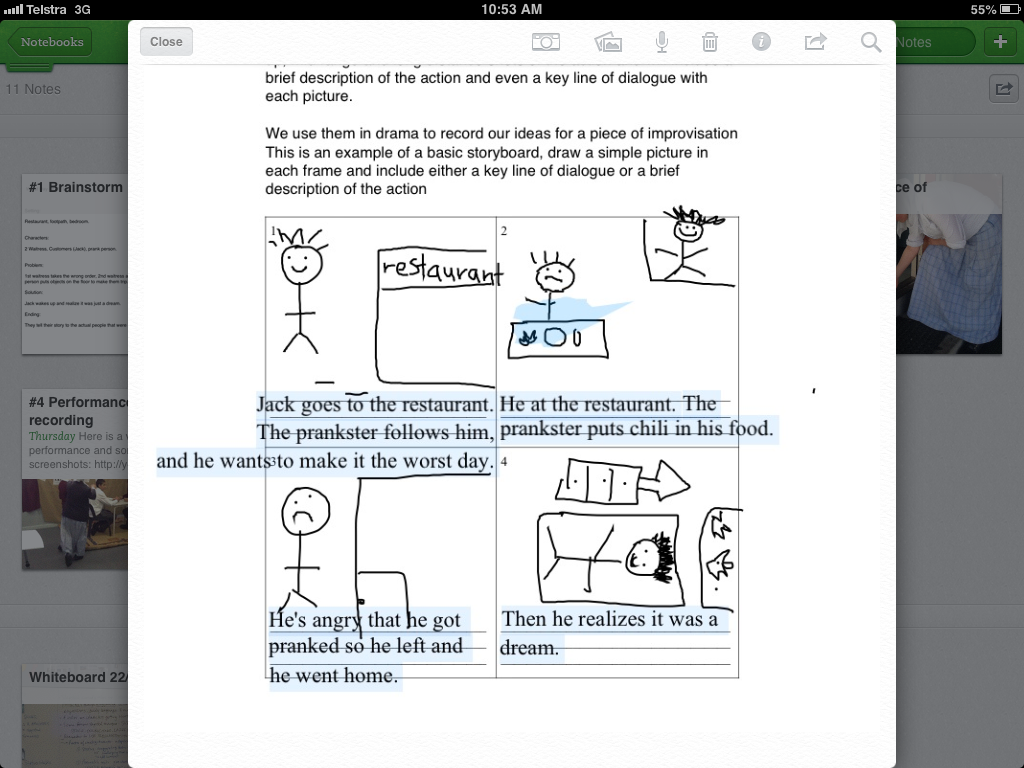
A storyboard (shared as a PDF file with the students and they used an app called Type on PDF to annotate over it)
Another storyboard – these students preferred hand-drawings and then inserting them into the storyboard through Type on PDF
Blocking the main actions/movements in the scene
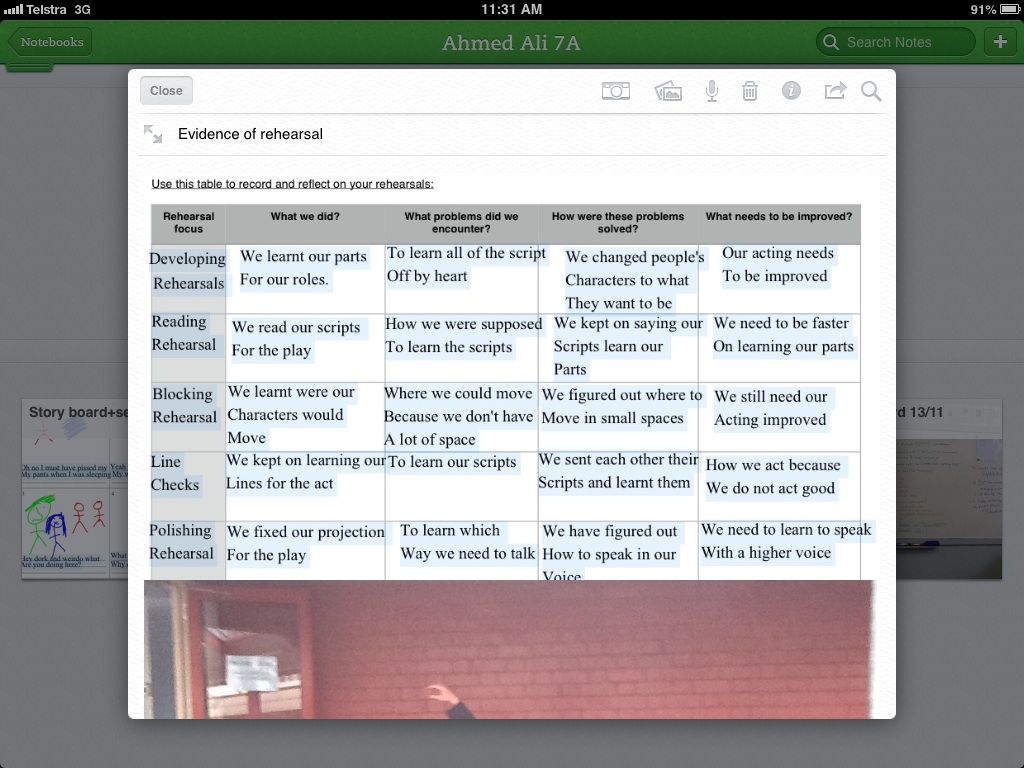
Adding evidence of rehearsal using a rehearsal log and some pictures
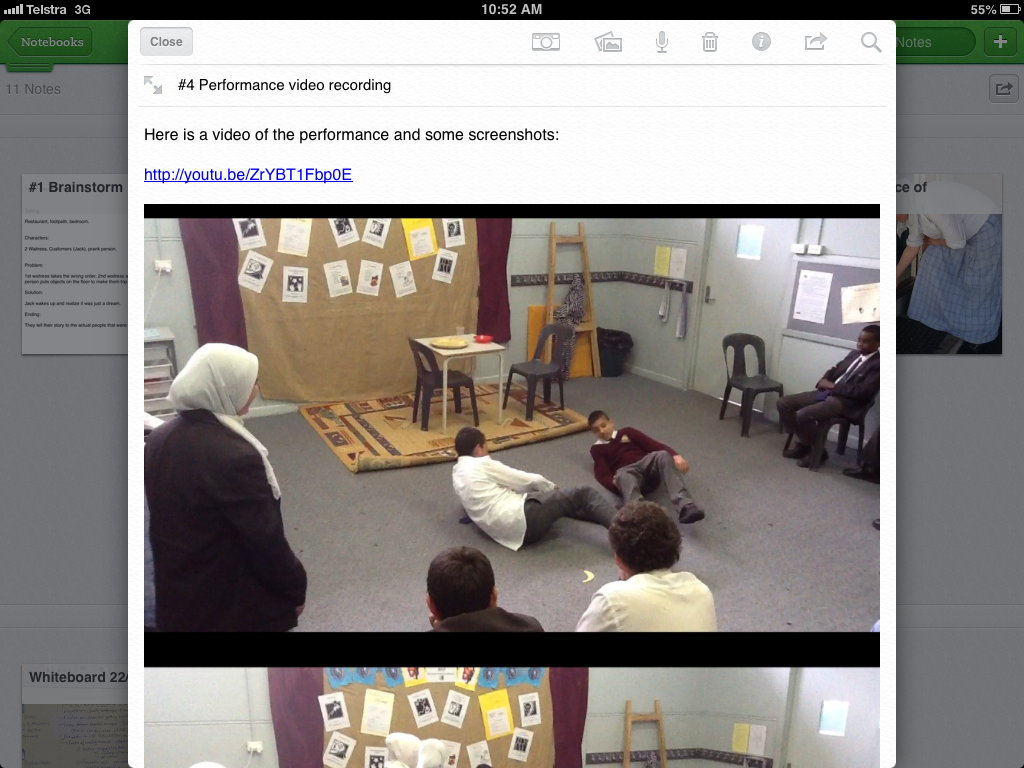
Evidence of performance – video uploaded on class YouTube channel and hyperlinked in portfolio + adding screenshots of parts of the video
Video of performance on YouTube (set on private or unlisted depending on parent permissions)

Oral reflections and evaluations by group members

Written and oral feedback given by teacher

Radio Drama: Create your own horror radio play (Part 2)

This term, the year 6 classes are studying Radio Drama. I have posted previously about how they created radio commercials to explore the creative potential of the voice. We also had a chance to perform poems to apply characterisation techniques to voice. Then we attempted to develop better enunciation and articulation by performing tongue-twister poems in this tongue-twisting lesson. The class also had the opportunity to explore voice projection and create their own radio interviews.

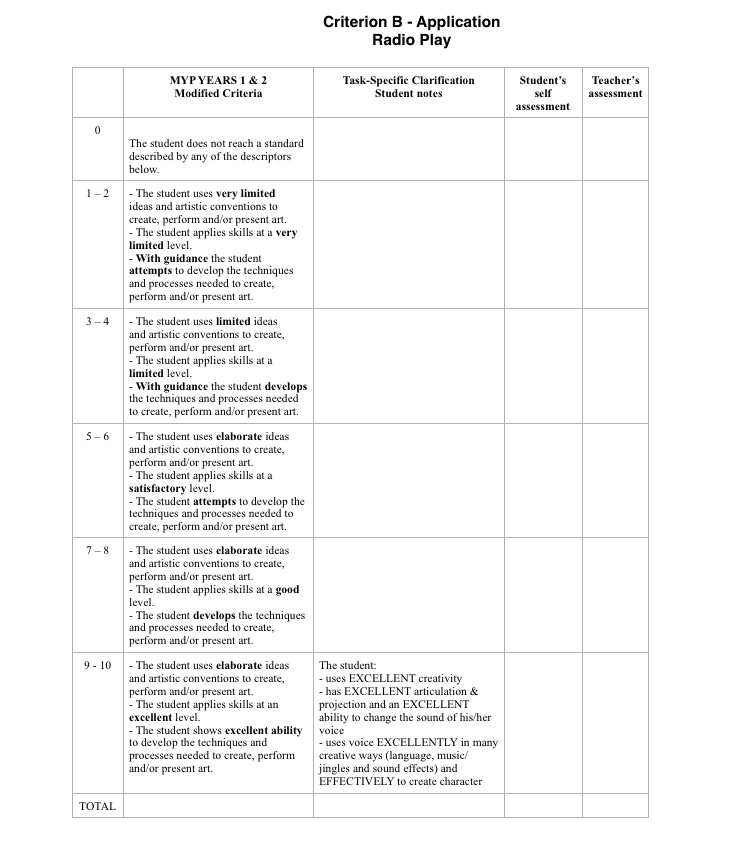
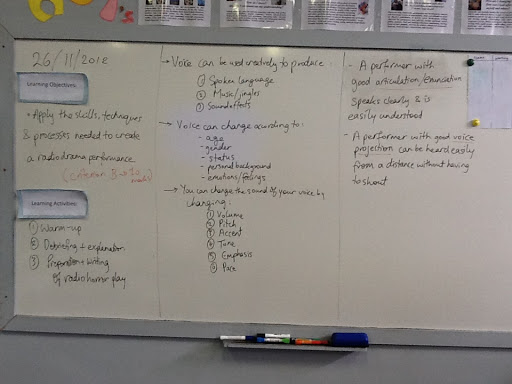
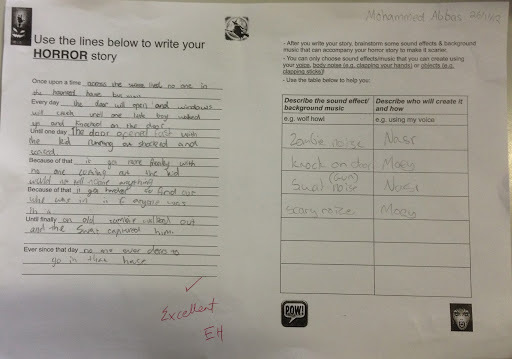
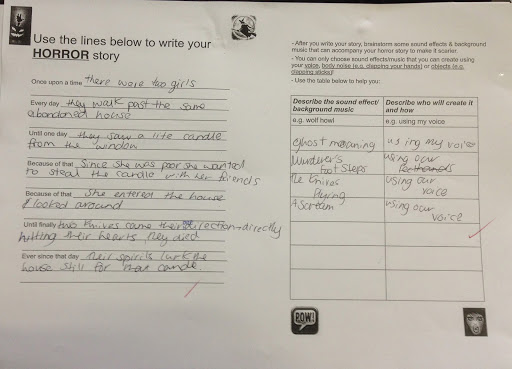
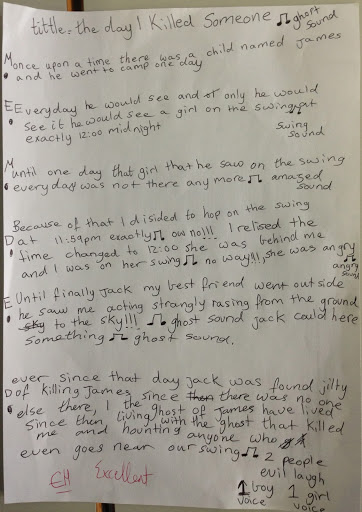
To sum up this unit of work, and to allow for summative assessment of MYP Criterion B (Application), the class will have the opportunity to create their own horror radio plays (as inspired by Orson Welles’ War of the Worlds). The task’s learning objective is to apply the skills, techniques and processes used to create a radio drama performance. This task was planned to span over two weeks (one double-period per week). Last week, I posted about the first week of the task, where the students wrote their stories and brainstormed possible sound effects and background music to accompany the narration.
This week, we moved on to the next part of the drama process: to apply rehearsal strategies  and to reflect on and evaluate our artwork (process and product). The warmup for the lesson was a radio drama rehearsal game that I always enjoy: the students move into their groups and rehearse their radio plays five different times, each time with a different focus: once in normal speed, once in super slow motion (to force them to clearly pronouncing each vowel and consonant), once in fast forward (a very fun and tongue-twisting articulation and enunciation exercise), once as a comedy (to get them to think about tone and emotions in voice), and once as a musical (to help them warmup their voices and think about tone and emotions in voice). The students were encouraged to record their rehearsals using their iPods, listen to them and reflect on their characterisation, enunciation and voice projection. This warmup exercise achieves several objectives: to help students warmup, to rehearse for their performances, and to become more confident and ready for performing in front of the audience. The debriefing that followed the warmup was designed to ensure that the students take meaning out of this exercise (other than it just being ‘fun’) and reflect on it.
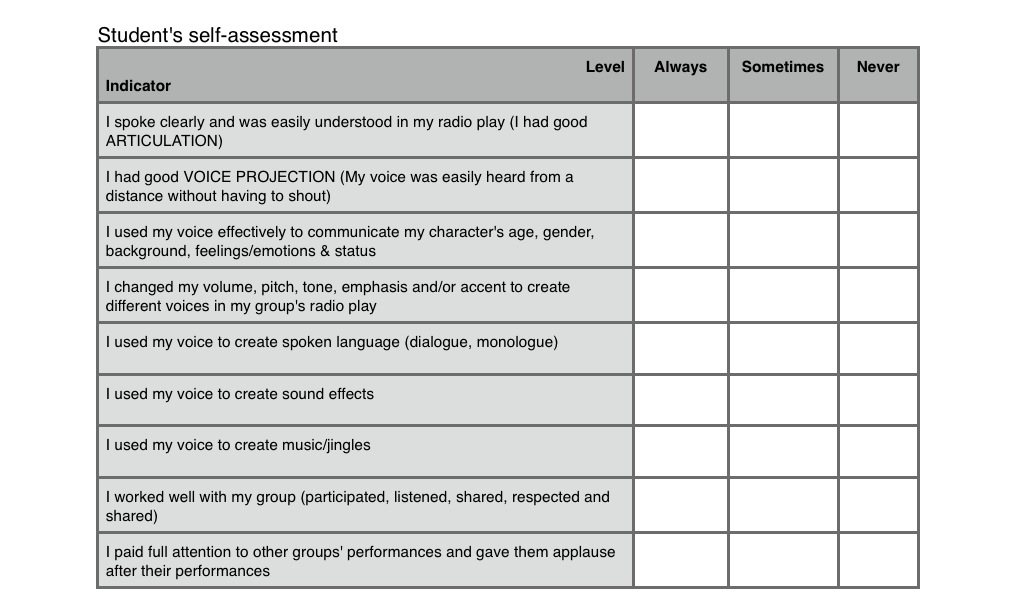
After the warmup and debriefing, the students sat in front of the performance space and formed an audience. Each group subsequently hid behind a curtain set up for the task, and delivered their horror radio play. The audience would then be asked to think like critics and give feedback (positive comments or useful suggestions) for the performers. Each radio play was recorded using my iPad. After all performances, the students were asked to bring out their task sheet and rubric from their drama folders (handed out to them last week). We then heard all the recorded performances through the class projector to help each student reflect on and evaluate his/her performance. Each student listened to his/her group’s performance, used the self-assessment checklist in the task sheet to self-assess, and then gave themselves a mark out of ten using the rubric attached to the task-sheet (in the ‘student’s self assessment’ column). 
After the self-assessment and evaluation, I had the opportunity to quickly conference with each student (for one or two minutes) and allow them to reflect orally on the process and product and justify their self-assessment. I concluded the conference with assigning each student his/her mark in the teacher self-assessment column and giving them oral feedback. 
It was a very busy lesson, with lots to do! However, I believe the task as a whole was a huge success and the students seemed very engaged with it. I believe this task can also be adapted and used in a non-drama classroom: English/ESL, LOTE, even Humanities classrooms where students create radio plays about social issues.
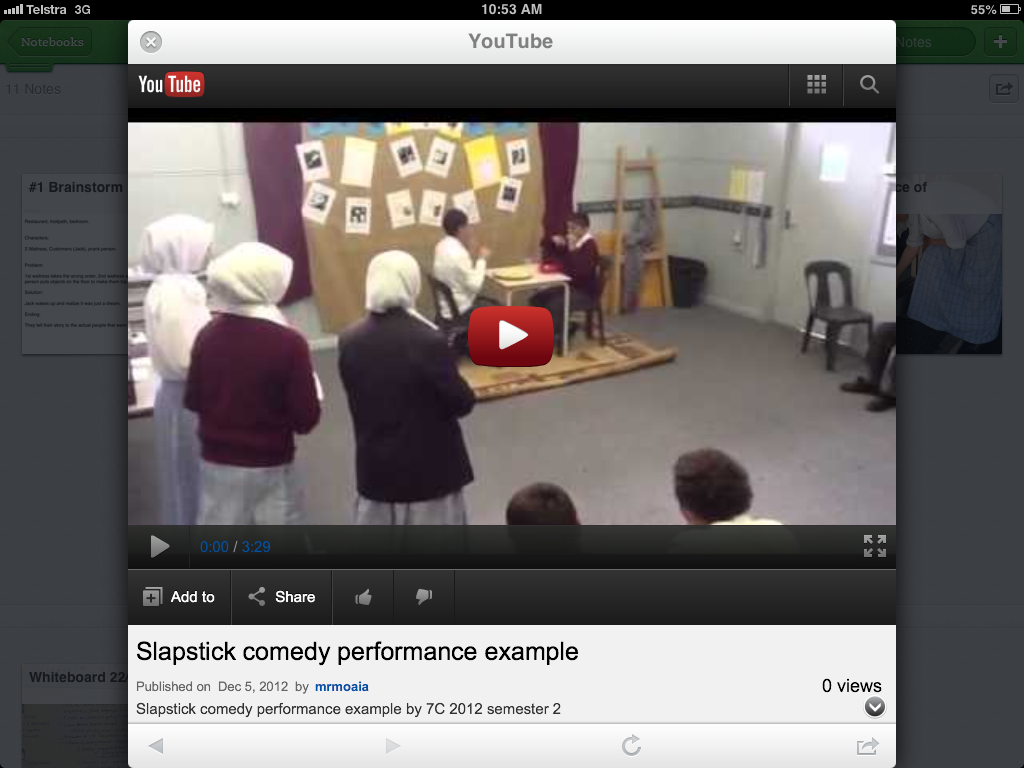
Below are embedded clips of the best three performances, as well as screenshots of the self-assessment checklist, the adapted MYP rubric used, and the whiteboard.

iCollaborate: making the most of collaborative learning in an iPad classroom?

    20121207-225612.jpg

I started my teaching career at an international school in Egypt. This school had a very structured curriculum and used standardized testing very often. I learned a lot from working there, I have to admit. But one thing I found rather displeasing about the curriculum was that it only encouraged and facilitated individual learning. There weren’t many opportunities for group work or collaborative learning.

When I moved to Australia, I took up a job at an IB school in Melbourne. I am still working there as an MYP Performing Arts, English/ESL and Humanities teacher. I noticed that some teachers shy away from group work. To be fair, group work does pose challenges that may not necessarily be present in individual tasks. One of the biggest challenges of group work is how to assess each student’s contribution to the final product.

I believe the benefits of collaborative learning far outweigh the challenges (I recommend reading this article to find out more about the benefits of collaborative learning and how to make the most of it). I also believe that, when utilized correctly, mobile technologies (like the iPad) can facilitate collaborative learning and make it easier to assess, as well as document evidence of every step of the learning process.

This it what I do in my classroom to make the most of a collaborative learning process that incorporates the iPad (i.e. to minimize distractions, maximize group engagement in the collaborative process, and to manage the classroom more effectively):

    1- Use a ‘group work log’ on Google Forms: I divide my class into ‘theatre companies’ which is the fancy name I give to the groups. Before every task, I create copies of this google form, one copy per theatre company/group, and I share the URL with them (or give them QR codes). The students are required to fill out this group-work log after every lesson spent on the task (for example, if the task is spanned over three lessons, then each group member has to have submitted three entries). The advantage is that all entries have a date/time stamp, and this form allows the documentation and evaluation of, and reflection on, every step of the collaborative learning process.

    20121207-222957.jpg

    2- Break the task into mini-tasks or steps and assign each student a mini-task/step: this is very similar to assigning group roles, such as group encourager, group reader, group writer etc… I have found that breaking the task into steps and assigning each student a step (or allowing them to divide the steps between them) gives the students more ownership over their part of the process. These mini-tasks can be independent of each other or built on one another. For example, in a drama assessment task, I would ask the group to give each member the responsibility of documenting evidence of a different part of the drama process: one member is responsible for documenting brainstorms, another for documenting the script-writing process, another for documenting the storyboarding phase, another for documenting the rehearsal phase etc… I would normally setup and use a shared notebook with the students on Evernote to help with this process of documentation. It is important to mention and explain to the students that even though each student is responsible for documenting evidence of each step of the process, they still have to all work together and collaborate through all steps. Here’s a screenshot of an Evernote portfolio/shared-notebook for students to document evidence of each step of the drama process.

    20121207-224356.jpg

    3- Allow one-iPad-at-a-time per group: one of the most common ways of assessing group work and documenting evidence is guided and systematic teacher observation. However, in a class full of 25 students, and each on their own iPad, this might be difficult. I prefer to allow only one group member on an iPad at-a-time, while the others are using some other medium to continue with their work. This means I only observe 4-5 students on iPads at-a-time (as I usually have 4-5 theatre companies per class). For example, maybe in the brainstorming phase, the group could draw a mind map on poster paper, while one group member copies it into their iPad on a brainstorming app (here are two examples, one involving a google form, and another involving a typewith.me pad). To make my observations more meaningful, I often use a quick checklist of the ‘behaviors and attitudes to group-work‘ (which have been taught in the classroom) to guide my observations, and also to keep a record of them (I have the checklist as a picture in my camera roll and I just import it into ‘Skitch‘, which syncs automatically with Evernote). You might decide to share the checklist with the observed student/s but I prefer to just conference with them quietly and give them oral feedback based on my observations.

    20121208-104728.jpg
    4- Ask students to document the group-work process using various forms of media: I always tell my students “it’s all about the evidence”. Luckily, the iPad is a camera, voice recorder, interactive whiteboard (or can be) and typewriter all rolled into one device. I always encourage the students to take photos/screenshots of their group work as documentation, record audio notes of their group discussions, create screencasts of their group brainstorms, take video footage of their rehearsals, or even jot down simple anecdotes of group work. I also encourage them to vary the forms of evidence and choose that which caters the most to their preferred learning style. This evidence can all be added to one note in their shared notebook, which they can call “evidence of group work” or anything similar.

    5- Emphasize the process more than the product: collaborative learning should be more about the process of learning and working together, as opposed to creating a finished product to submit to the teacher. I prefer incorporating student reflection and student self-assessment during every phase/step of the process, as opposed to just using a rubric to assess a final product that the students submit. I also constantly remind my students that we learn a lot from the process itself, and that their main aim should not just be to finish and submit a finished product.

How do you make the most of group work in your iPad classrooms? Please feel free to share your ideas, tips, experiences and suggestions in the comments below. Happy iCollaborating!

Slapstick Comedy: Step three of the drama process!

The year 7 and 8 classes are studying a unit of work on ‘Slapstick Comedy’. I have posted previously about how we explored the concept of humour in general, and how we defined slapstick comedy. Two weeks ago, we kick-started the drama process and began brainstorming for our performances, and we had the opportunity to write up the scripts and draw up the storyboards for the performances
This week we moved on to step three of the drama process: rehearsal. The lesson started with a quick warmup called Status Pictures, where the students form still-images depicting situations involving characters of different status. This warm-up was chosen to get students thinking about status relationships and how they are used in slapstick comedy to create humour. After the warmup and debriefing session that followed, I recapped on the theoretical part of the unit which was written on the whiteboard (pictured below); then the students moved into their groups (or ‘theatre companies’) and were each given a rehearsal handout (A4 size) and an A3 size Rehearsal Log. I circulated around each group to check their progress and to recap over the rehearsal process: what is its importance and how can it be used effectively?
The students spread around the drama room (some groups moved outside into the courtyard) and they each rehearsed a few times. The groups were told to choose a different focus for every rehearsal (e.g. body language, or blocking, or voice etc…), to fill out the rehearsal log after every rehearsal to reflect on it, and to document their rehearsals with photos and some video footage (using smart-phones/iPods for year 8s, or iPads for the year 7s). The students were also told to keep evidence of their rehearsal in their portfolios: e.g. annotated pictures from rehearsal (printed from classroom printer) and the rehearsal log. For the year 7 students, who all have iPads, this evidence was just added to their shared Evernote notebook which they used as their group portfolio
The rehearsal process seemed to go rather efficiently, and everyone had a meaningful role as each student was either acting out in rehearsal, or taking photos/shooting video, or filling out the rehearsal log. The groups also seemed much more committed to the rehearsal process due to of having a different focus for every rehearsal. Below are some snapshots of the rehearsal logs of a couple of ‘theatre companies’, a snapshot of the whiteboard, and a screenshot of an Evernote portfolio from one of the year 7 groups.
Next week, we move into the final two steps of the drama process: performance, followed by reflection and evaluation. Stay tuned ladies and gentlemen!

Radio Drama: Create your own horror radio play (Part 1)

This term, the year 6 classes are studying Radio Drama. I have posted previously about how they created radio commercials to explore the creative potential of the voice. We also had a chance to perform poems to apply characterization techniques to voice. Then we attempted to develop better enunciation and articulation by performing tongue-twister poems in this tongue-twisting lesson. Last week, the class explore voice projection and created their own radio interviews.
To sum up this unit of work, and to allow for summative assessment of MYP Criterion B (Application), the class will have the opportunity to create their own horror radio plays (as inspired by Orson Welles’ War of the Worlds). The lesson’s learning objective is to apply the skills, techniques and processes used to create a radio drama performance. This task will span over two double-periods (one double-period per week). 
To start off the lesson, we did a quick ‘one-sentence story with sound-effects’ warmup, where students sit in a circle and each of them contributes a sentence to build a horror story. I asked students to use their voices and their bodies to create sound effects and background music to set the mood/scene and to accompany each sentence contributed to the story. We then debriefed on the warmup and quickly reviewed the theoretical material we learned throughout this unit of work (which is all written on this snapshot of the whiteboard).
The students were then asked to move into groups of 3-4 students and they had to use this story outline and the sound-effects table to brainstorm and prepare their horror radio play. We read over the task sheet as a class and discussed the rubric and task expectations. The students then spent the rest of the double-period writing their horror stories and deciding on the sound effects and background music that will accompany the radio play. You can find snapshots of the students’ work below. 
This task can also be adapted to use in an English/ESL class after exploring radio plays and story structures. Next week, the students will rehearse their radio plays, and then perform it in front of their classmates to receive feedback, then reflect on and evaluate their performances. It will be a very busy lesson. Stay tuned!

Googlassroom: Google in the classroom?

I write a lot about the iPad. This is because we’re an iPad school and I’m an eLearning leader. However, luckily, we’re also a Google school! Our school has signed up for the Google education suite years ago, and every staff member and student has a gmail account. Thank the heavens!

Google Apps for Education offer a very wide range of apps that can make the learning process more engaging, meaningful and interactive. I am a Google-addict and I encourage all teachers to integrate each of these Google products in their classroom, one way or another!

1- Google Docs: Wikipedia defines Google Docs as “a free, Web-based office suite and data storage service offered by Google within its Google Drive service. It allows users to create and edit documents online while collaborating in real-time with other users”. The applications of this service in the classroom are endless:

    • essay-writing tasks: if a student is asked to write an essay, they can set up a Google Document and share it with the teacher. The teacher can give feedback in real-time during the drafting process, and the student can invite another classmate to give peer feedback. This way of setting up the task emphasizes the PROCESS of writing the essay, and not just the final PRODUCT.
    • student presentations: if a group of students have a presentation together, they can set up a Google Presentation and collaborate in real-time to create it.
    • formative assessment: I am a huge fan of Google Forms, which allows you to easily create forms for anything. I have used it for collecting results of student brainstorms, for facilitating peer evaluation of drama performances, for allowing students to reflect on and evaluate their performances, and to collect feedback from students on my teaching and my units of work. It can also be used in many more ways like tests and quizzes, rubrics for assessment, keeping records etc… Refer to this link for more ways to use Google Forms in the classroom.

2- Google Drive: is Google’s file storage and synchronization service. Google Docs is now a part of Google Drive. This service allows sharing all sorts of files with the students, whether they are worksheets or handouts or templates etc… Students can also upload files to share with the teacher such as completed work to be graded/marked etc…

3- YouTube: is a video-sharing website that was recently acquired by Google. There are many teachers who bring YouTube videos into their classroom, whether to help explain a difficult concept or to illustrate with examples or to spark a debate. However, I believe 21st century teachers should now be pushing students to become content providers, and not just content recipients. A teacher can easily set up a class YouTube channel for students to upload the videos they created, whether they are filmed drama performances, or screencasts about educational topics. YouTube also offers a range of security options, so videos can be set to either public, or unlisted or private, and thus the students’ safety is not compromised. Here is a link explaining the many ways YouTube can be used in the classroom.

4- Google Sites: as defined by Wikipedia, Google Sites “is a structured wiki– and web page-creation tool offered by Google as part of the Google Apps Productivity suite”. A ‘wiki’ is a collaborative website in which users can add, edit or delete content via a web browser. There are many ways a teacher can use wikis in the classroom:

    • Student portfolios: a very common way I have observed of using Google Sites in the classroom. The teacher would set up a Google Site and give each student a page name where they upload and embed evidence of the learning process. Students can add video (embedded from YouTube), audio, pictures, text, hyperlinks and documents/files (embedded from Google Drive). Alternatively, each student could create their own Google Site as their portfolio and have a page for each learning objective for which they have to demonstrate evidence of learning.
    • Revision notes: I used a wiki last year to allow the students to collaborate in preparing revision notes for the final exam. Each group of students were given a chapter to summarise and collect/create revision material for, and a corresponding page on the class revision wiki.
    • Resources website: A teacher can set up a Google Site for a specific unit of work or theme that the students are interested in and the class can add educational content to build an educational resources website about that topic/unit/theme.

5- Google Blogger: is Google’s blog-publishing service. A ‘blog’ is essentially a journal of entries (or ‘posts’) that are displayed from most to least recent.  Blogs can be used for discussions, posting information for parents and/or students, student portfolios, collaborative projects and reflective journals. The teacher would have to set up the blogs for either individual students or groups of students, since Blogger has a minimum age requirement for setting up blogs. A blog can also be set up if the teacher wants to flip the classroom. I would normally post a video along with a discussion question and an embedded Google Form to help with my formative assessment and to check students’ understanding.

While these are not the only products Google offers as part of its educational apps, these are the ones that I love the most. These apps can be seamlessly integrated and combined together to create a classroom environment that encourages creation, collaboration and communication, while also allowing for the collection and collation of evidence of the learning process.

Slapstick Comedy: Step two of the drama process!

The year 7 and 8 classes are studying a unit of work on ‘Slapstick Comedy’. I have posted previously about how we explored the concept of humour in general, and how we defined slapstick comedy. Last week, we kick-started the drama process and began brainstorming for our performances

This week, the ‘theatre companies’ (the fancy name I use for my drama groups) finalised their brainstorms and started writing their scripts and creating their storyboards. The script-writing process was mainly driven by each group’s ‘writer’, while the story-boarding was mainly driven by the group’s ‘director’. The year 7 classes had to do this on their iPads and attach evidence to their group portfolio on Evernote. The year 8 classes (who do not have iPads) were each given a group folder to use as their portfolio for the task. The lesson’s learning objective is to ‘apply the skills, techniques and processes used to create slapstick comedy performances’.
The lesson’s warmup was a game I found on The Drama Notebook called ‘Queen of Hearts’. This game is designed to get students to think about status, as each student is assigned a card from a deck of cards. Each card represents a different character in a medieval royal court, and the higher the card the higher the status of the character. The students then mill about the room, walking and relating to others in character. The class then had a quick debriefing session about the warmup and we related it to the use of status relationships in slapstick comedy to add to the humour, either by overly exaggerating those relationships or challenging them. We also talked about other ways to create character in slapstick comedy, such as creating dominant negative personality traits for each character and designing bizarre over-the-top costumes.
To start the second step of the drama process, which is preparing the script and storyboard, the students used this template which I adapted from a worksheet I stumbled into by accident through a Google search of ‘drama worksheets’ (the Internet is MY BEST FRIEND). The students had to use what we have learned about slapstick comedy so far in their script-writing process (e.g. they must incorporate some slapstick techniques like the trip, slip, collide, double-take, stuck, and lazzi; they must use slow-motion to add dramatic effect to these techniques; and they were also encouraged to use status, personality traits and costumes to add comic potential to their characters). Here are snapshots of one group’s script and storyboard:

Next week, we move into the third step of the drama process, which is ‘to rehearse’. The students will be using a template for blocking and rehearsing, and they will also be using their iPods/iPads/smart-phones to document their rehearsals and reflect on their acting to refine and polish their performances. Stay tuned!

Radio Drama: Create your own Radio Interview!

The year 6 classes are studying Radio Drama. I have posted previously about how they created radio commercials to explore the creative potential of the voice. We also had a chance to perform poems to apply characterization techniques to voice. Then we attempted to develop better enunciation and articulation by performing tongue-twister poems in this tongue-twisting lesson.

The next lesson in this unit of work is ‘radio interviews’. The learning objectives for this lesson are:
1) to develop better voice projection
2) to create a radio interview

The warmup chosen was a voice-projection exercise where the students form pairs and then line up facing each other. The pairs then start a conversation, until they are instructed to move three feet away from each other, and continue the conversation. After about 30 seconds, they move another three feet away from each other, and so on. After the warmup, we debriefed as a class to explore the benefits of this warmup, and the skills it allows us to practice, and how it linked to voice projection.

After the debriefing, I explained the new theoretical material for the lesson. I explained what voice projection is and how performers can use certain strategies to improve their voice projection. The students were told that they will have an opportunity to practice those strategies through a simple performance exercise: radio interviews.

The task required the students to form groups of 3-4 members, pick a celebrity/cartoon-character to interview and write up five questions and answers. Each group had to have 1 or 2 radio hosts asking the questions, and the remaining group members play the chosen character/characters or celebrity/celebrities who answer the questions (in character). Each performance also had to include a jingle for the radio station, created by the students’ voices.

The students were told that for this performance the audience members will sit at the very back end of the room (as far away from the performance space as possible), and so the performers really had to project their voice if they want to be heard.

The task was very engaging for the students. One group interviewed Spongebob Squarepants, and another interviewed Bart Simpson. Most of the boys decided to interview famous sports-stars I haven’t even heard of (sports isn’t really my strong point)! The audience members gave the performers positive comments and useful suggestions after every performance, because I like to allow my students to step into the “critic’s shoes”. To wrap up the lesson, the students had to write an ‘exit slip‘ explaining what they learned today and what they found enjoyable.

Overall, the lesson was a success, the students created some fantastic performances, and most groups projected their voice well enough! This lesson can also be adapted and used in any subject: interviewing a scientist in Science, a mathematician in Maths, a book author in English/ESL/LOTE etc…

Here is a radio interview created by a group of girls who decided to interview Bart Simpson. There is also a snapshot of the whiteboard, and some of the exit slips!